
Add icons and your own artwork
Use the built-in library, or upload any image you have the rights to use.
Use the built-in library
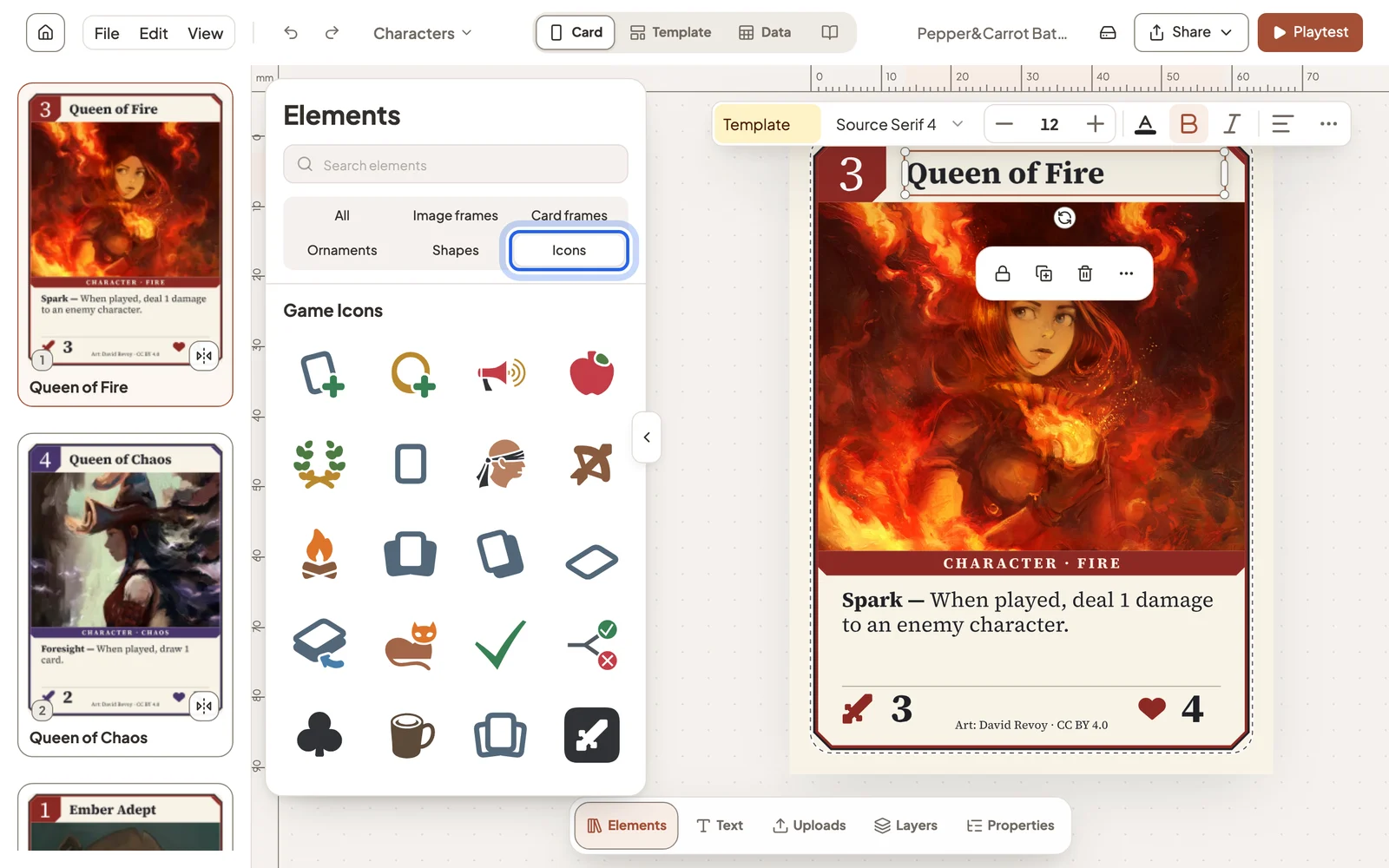
Open Elements → Icons to search thousands of game icons, then click one to add it to your card. Icons stay sharp at any size, and the toolbar lets you recolour them.
Upload your own
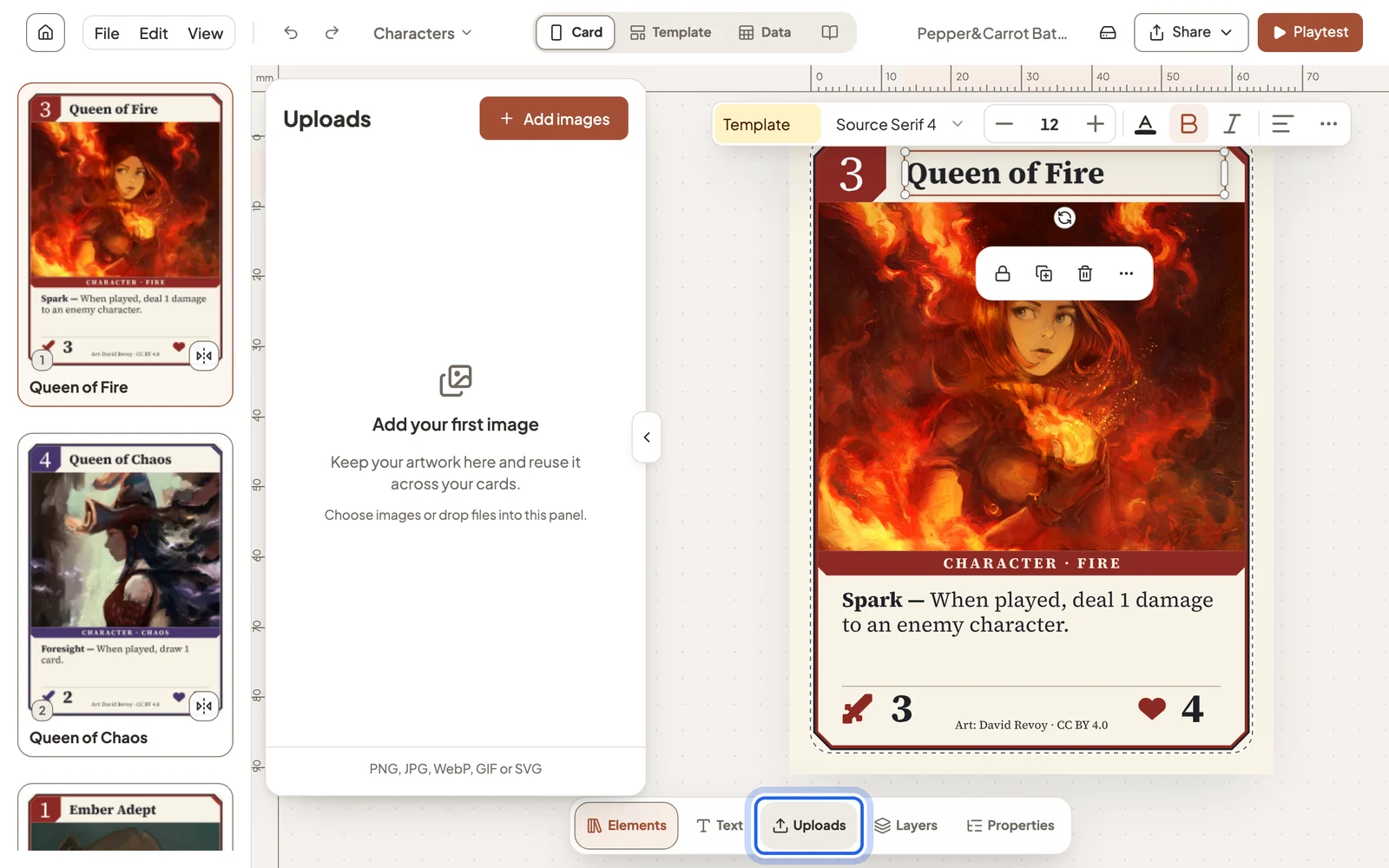
Open Uploads and choose Add images, or drop files onto the panel. Studio accepts PNG, JPG, WebP, GIF and SVG. Uploaded artwork stays with the project, so you can reuse it across cards.
Swap a card’s picture
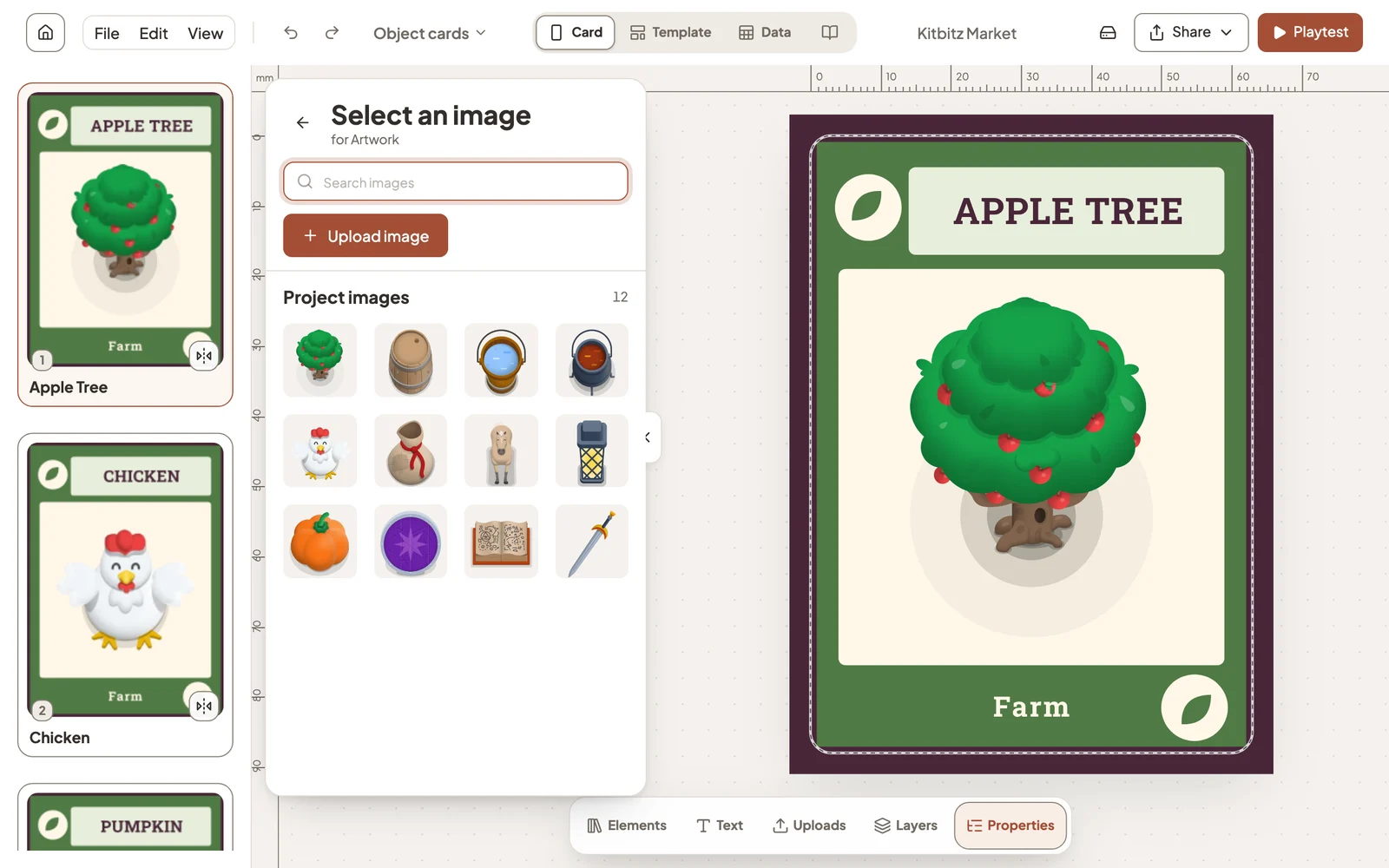
In Properties, select Replace image to choose from the project’s images or upload a new one. In Data view, each card’s picture has its own column.
Rights and credits
Use any artwork you have the rights to use. Dreamboard never generates art. If your game keeps template art or library icons, keep their credits too; Studio adds them to your exports. See Catalog credits.
Still stuck?
Email support@dreamboard.games and tell us what you are trying to do.